Video files can be uploaded to an instructor's Los Rios Google Drive and then embedded within a course offering on Desire2Learn. This video shows how to do this and includes an option to prohibit downloading by viewers.
09 January 2014
Upload Videos to Google Drive and Embed in Desire2Learn
This is cross-posted on Greg Desires2Blog
Video files can be uploaded to an instructor's Los Rios Google Drive and then embedded within a course offering on Desire2Learn. This video shows how to do this and includes an option to prohibit downloading by viewers.
Video files can be uploaded to an instructor's Los Rios Google Drive and then embedded within a course offering on Desire2Learn. This video shows how to do this and includes an option to prohibit downloading by viewers.

02 October 2013
Use Google Drive to Host Videos Created with Camtasia
Los Rios Google Drive is a good option for hosting videos that were created using Camtasia. Google will convert video formats a streaming format that can be viewed on mobile devices, and Google will handle the timing for converting a transcripts into captions. If the video was captioned in Camtasia, the caption file can also be imported into Google Drive.
- The Web setting in Camtasia's Production Wizard is good to use, though any of the settings will work.
- Within Los Rios Gmail and Google Apps, go to Drive and Docs.
- Click the Upload button and navigate to the folder that holds the production results from Camtasia.
- Select the movie file, which will be the largest file. The "Upload settings" options do not affect video upload, so click the Start upload button.
- When the upload finishes, click the name of the file to go to its page within Los Rios Google Drive.
Note: Depending on whether it has been processed enough to display a preview, the Open file button may need to be clicked. - On the video's page, click the Share button and change its "Sharing settings" to Anyone with the link and then click Save and then Done.
Note: The option to limit it to Los Rios sounds good in theory, but the authentication process for users adds a cost to entry (extra clicking and typing usernames and passwords) that may mitigate the perceived enhancement to security. - On the File menu for the video page, there is an option to "Prevent viewers from downloading." This does not prevent viewers from recording the video using another device.
- On the Edit menu for the video page, click the option to "Manage caption tracks..." and then click the button to "Add new captions or transcript" and then click "Select file."
- There are two ways to add a caption track:
- If all that is available is a transcript (must be a plain text file), select it and click the Upload button. Google will convert the transcript into captions.
- If the video is already captioned within Camtasia, export the caption file by selecting the Captions tool and clicking the "Export captions..." button to create a caption file (must be a SubRip file) to select and click the Upload button. Google will apply the captions.
- Processing the video and the caption may take a few minutes, but at any time you can grab the embed code. From the File menu on the video page click "Embed this video..." to get the embed code. You can also get the link to share by clicking the Share button.


16 September 2013
Use Los Rios Google Apps to Create an Image Gallery and Share via Desire2Learn
This is cross-posted on GregDesires2Blog
The Google Drive application can be used to create an online image gallery with thumbnails that link to higher-quality images.
The Google Drive application can be used to create an online image gallery with thumbnails that link to higher-quality images.
27 August 2013
Use Los Rios Google Apps to View PowerPoint
This is cross-posted on GregDesires2Blog
Though Desire2Learn includes an inline file viewer that displays PowerPoint presentations within the browser, there are still situations where students will need or want to download the presentation file to a local computer. For those who are off campus and do not have access to Microsoft Office, one option is to use Los Rios Gmail and Google Apps. A PowerPoint file can be uploaded to Drive and Docs, and Google will convert it to the Google Presentation format. It can then be viewed within the browser and downloaded as a PDF file for printing.
Though Desire2Learn includes an inline file viewer that displays PowerPoint presentations within the browser, there are still situations where students will need or want to download the presentation file to a local computer. For those who are off campus and do not have access to Microsoft Office, one option is to use Los Rios Gmail and Google Apps. A PowerPoint file can be uploaded to Drive and Docs, and Google will convert it to the Google Presentation format. It can then be viewed within the browser and downloaded as a PDF file for printing.
01 March 2013
Personal Gmail vs. Los Rios Gmail: Appearances Differ
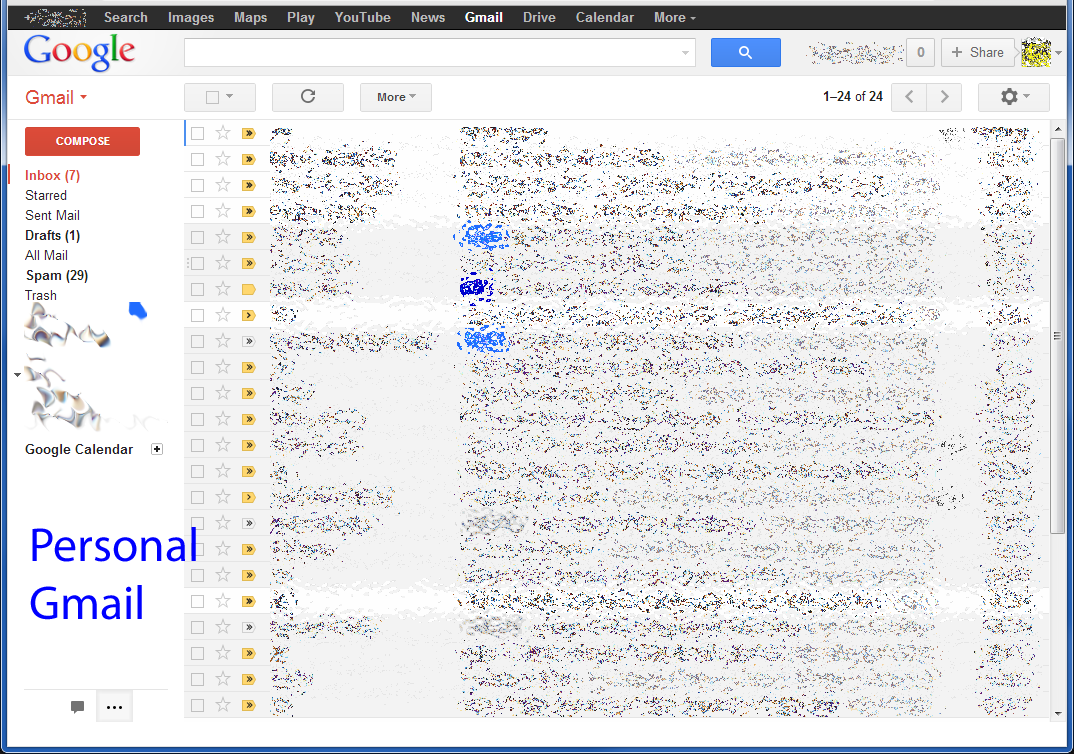
Though how Los Rios Gmail works is basically the same as a personal Gmail account, the appearance of the Mail page differs in a few ways:
- A personal Gmail page has the Google logo in the upper-left corner, and a Los Rios Gmail page has the logos of the Los Rios colleges in the same location.
- A personal Gmail account includes a profile photo but Los Rios Gmail accounts do not.
- The links to Google tools at the top of the browser window are not the same, as the Los Rios Google Apps domain does not include access to most of the tools included in a personal Google account.
- Though Los Rios Google Apps includes the Google Calendar tool, Gmail labs are not allowed (this means the Google Calendar gadget cannot be included on the Gmail page.
 | |
|
 | |
|
Subscribe to:
Posts (Atom)